







Local Mode and Local Smart Strategy Setup Guide
Add Hub Device (DTU)
To add the SunEnergyXT OpenDTU, please open the “Me” tab in your SunEnergyXT app. Then select the “Local control” category. Click on the DTU image and follow the instructions in the app to add the DTU to the app.
 Note: During the DTU network configuration, ensure the DTU and devices supporting local mode are in the same WiFi network.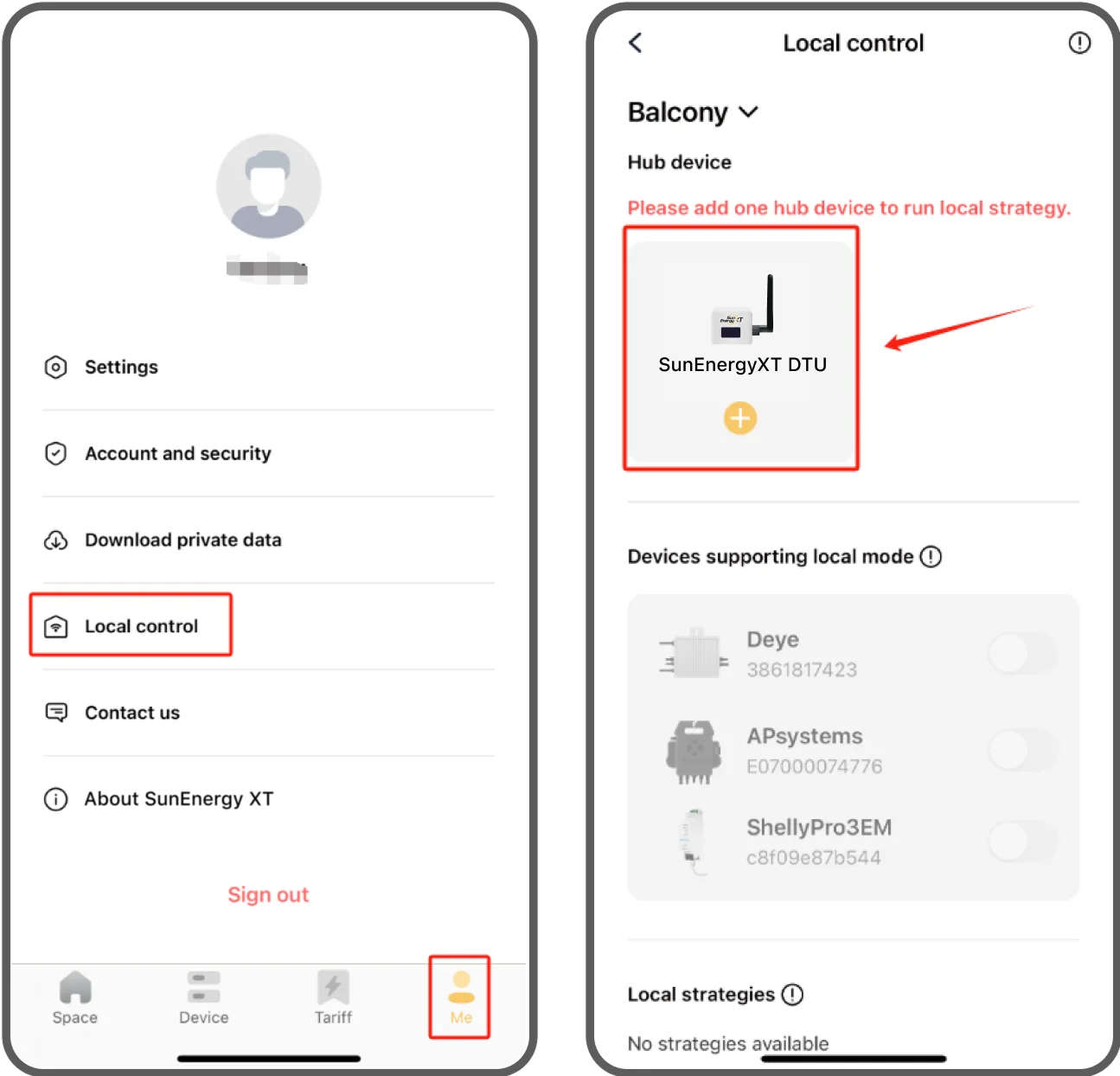
Upgrade DTU Firmware
After adding the device, the system will verify the DTU firmware compatibility. If the firmware version isn't met, follow the in-app instructions to upgrade the firmware.
Firmware download link:
https://app.sunenergyxt.com/downLoad.html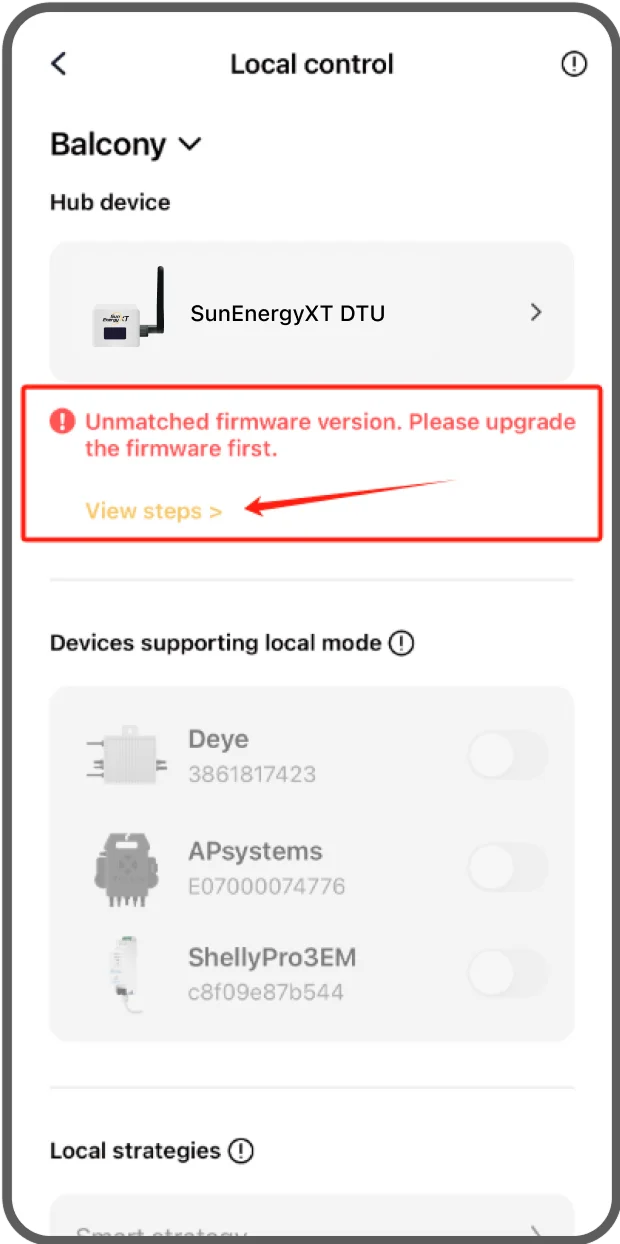
Enable Local Mode
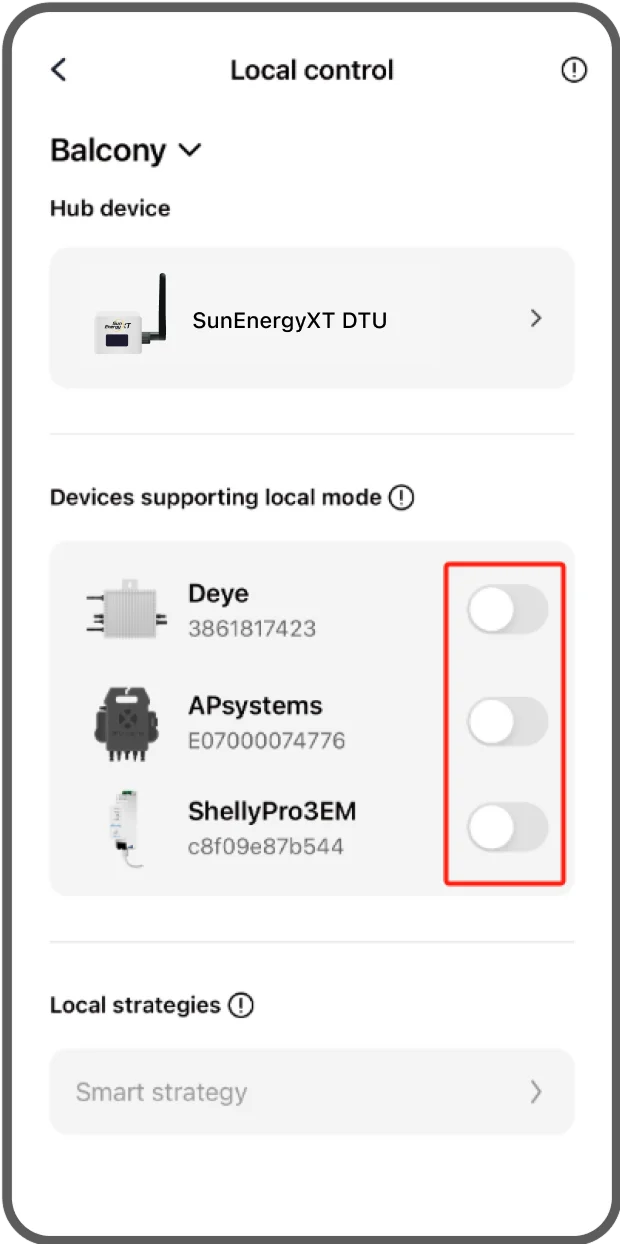
Toggle the device switch and follow the in-app instructions to enable the local mode of different devices.
 FAQ
FAQ1. Deye Microinverter not displayed in device list
The device with a inverter firmware version smaller than V0.2.4.0 doesn't support the local mode. If your device's firmware does not meet this requirement, it will not be displayed in the device list.
2. Failed to enable local mode
Ensure the device is working normally.
Confirm all related devices (DTU, target device, mobile phone) are in the same WiFi network.
Ensure VPN is disabled on your mobile device.
Enable local network permissions on your phone system settings.
Disable password protection in the Shelly backend.
3. After enabling the local mode of the device, the device card appears grayed-out when pulling down to refresh the page.
This is caused by unstable local network communication. Please try pulling down to refresh again to restore functionality.
Activate Local Smart Strategy
Activate Local Smart Strategy
Prerequisites:
All kinds of devices have been added into the Space, including BK215, Shelly Pro3EM/Shelly 3EM, AP System microinverter or Deye microinverters.
The local mode of the Shelly device and microinverter have been enabled.
Procedure:
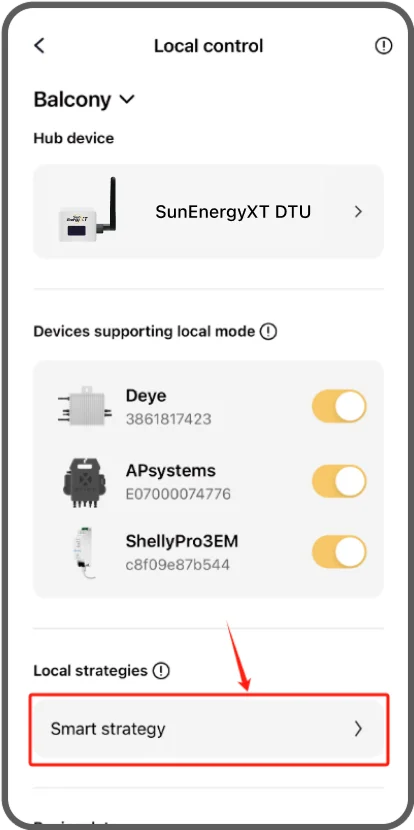
Click the Smart Strategy button on the page and follow the in-app instructions to activate the strategy.
If activation fails, check the following:Ensure all devices are working normally.
Confirm all related devices (DTU, target device, mobile) are in the same WiFi network.
Ensure VPN is disabled on your mobile device.
Enable local network permissions on your mobile OS.
Disable password protection in Shelly backend.
