







Please make sure your battery meets the following requirements:
- BK215 firmware version ≥ V1.5.7
- BK215 Plus firmware version ≥ V4.0.3
- Battery local communication is enabled
How can you verify the above information?
Click view details steps >
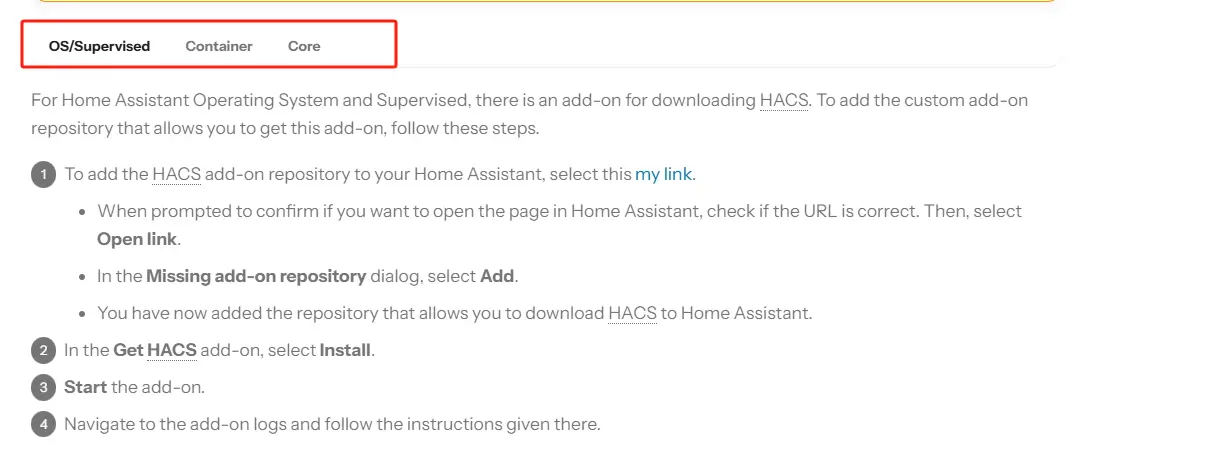
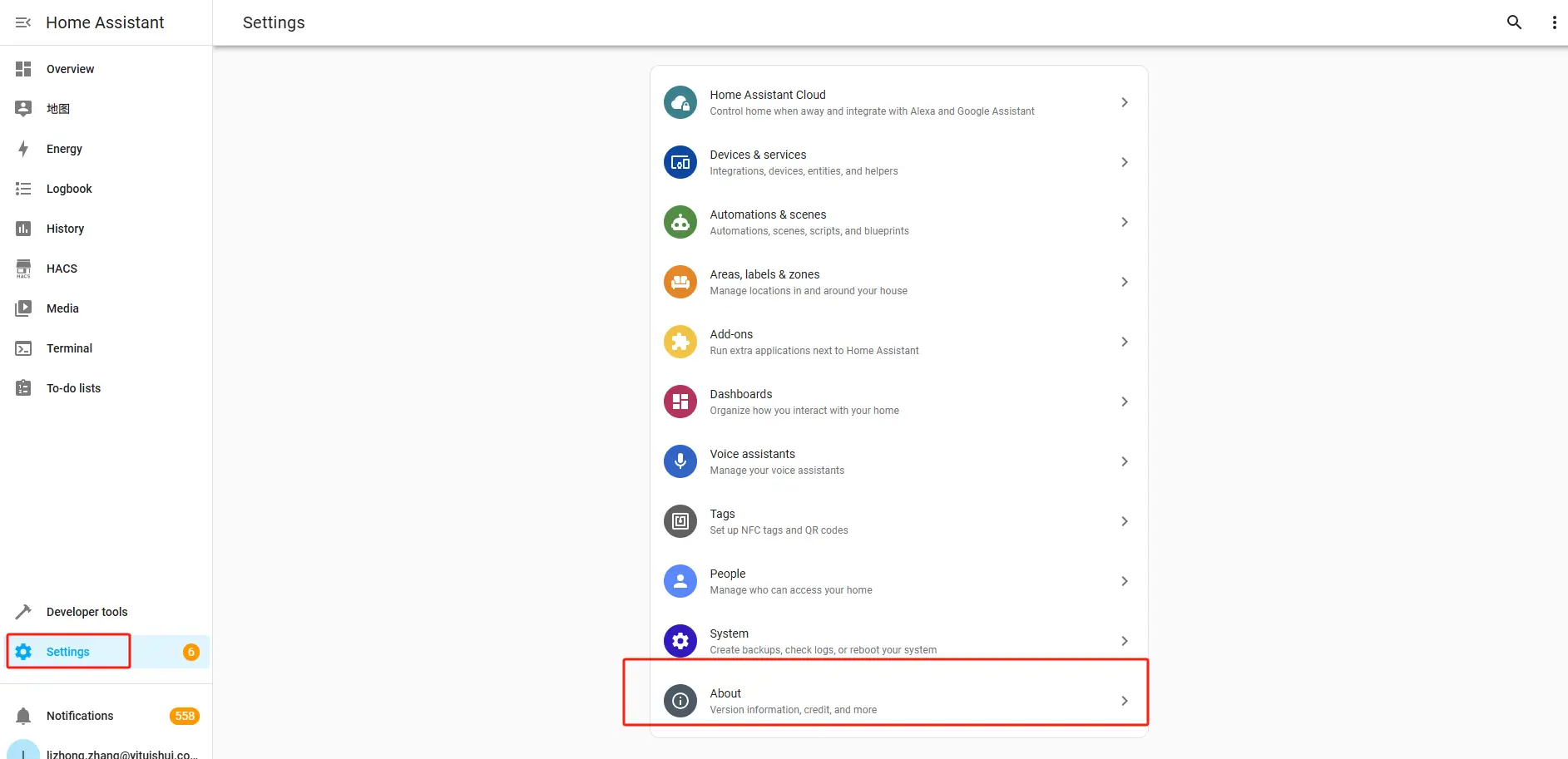
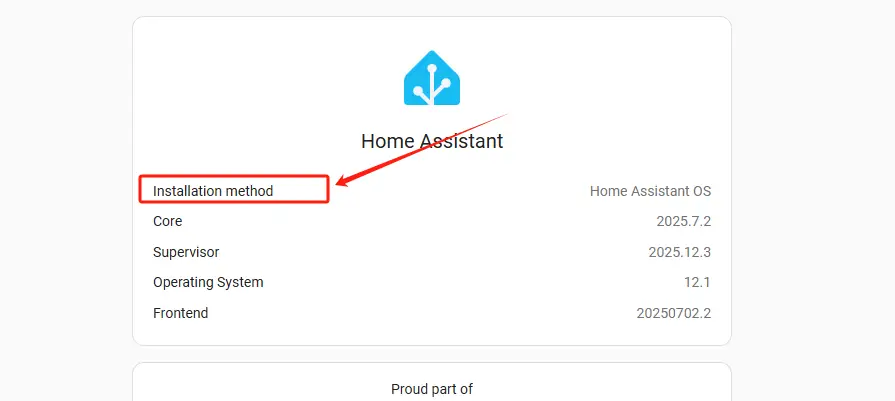
Install Home Assistant
Please visit: https://www.home-assistant.io/installation/
Complete Home Assistant onboarding
Please visit: https://www.home-assistant.io/getting-started/onboarding/

Check network connectivity
Make sure the BK215 / BK215 Plus and Home Assistant are connected to the same local network.
Integration Procedure
To make the integration process easier, we recommend completing the setup on a PC.
Once the integration is complete, you can view device information in Home Assistant on either your PC or mobile device.
Step-1 | Access the Home Assistant web interface.
Open a web browser on your computer and go to:
http://homeassistant.local:8123(Ensure your computer and Home Assistant are on the same local network.)
Step-2 | Install the battery custom plugin via HACS
Please visit: Battery Custom Plugin Installation Guide
Step-3 | Integrate your device into Home Assistant
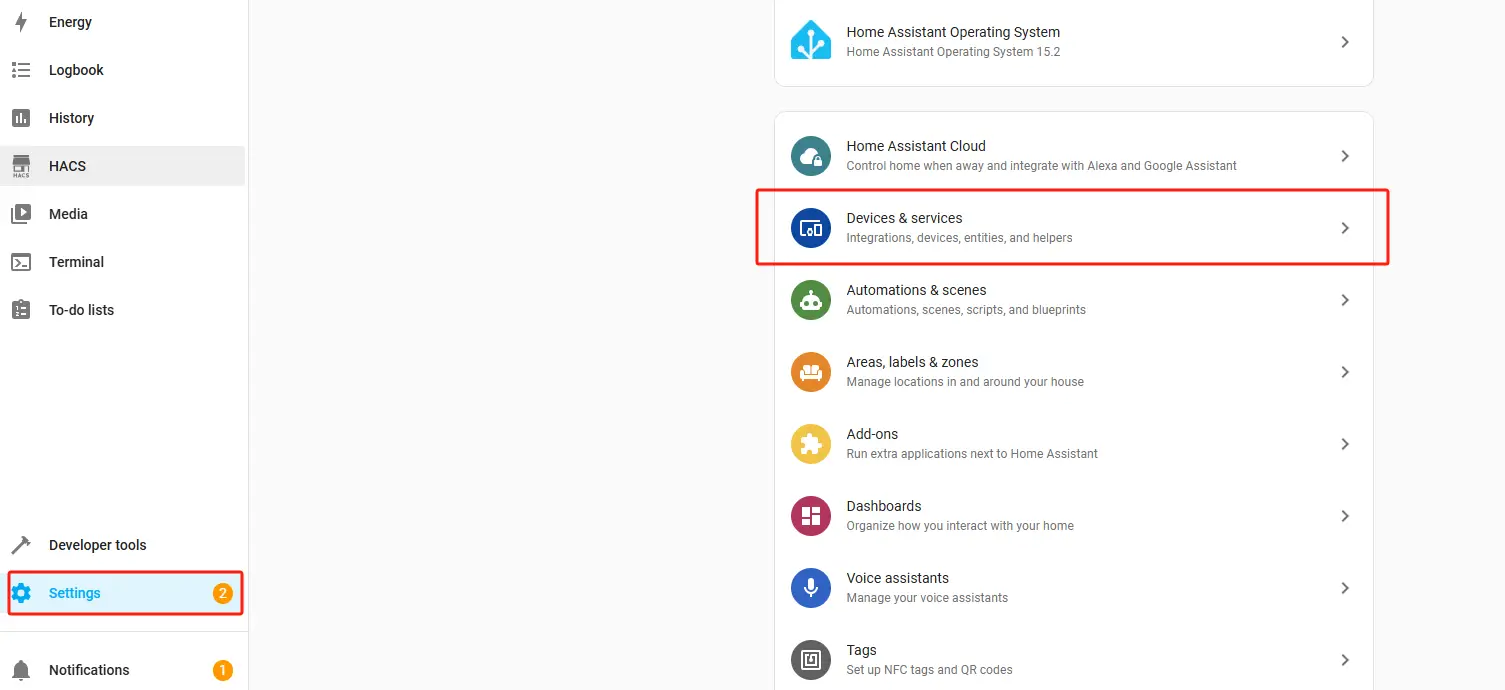
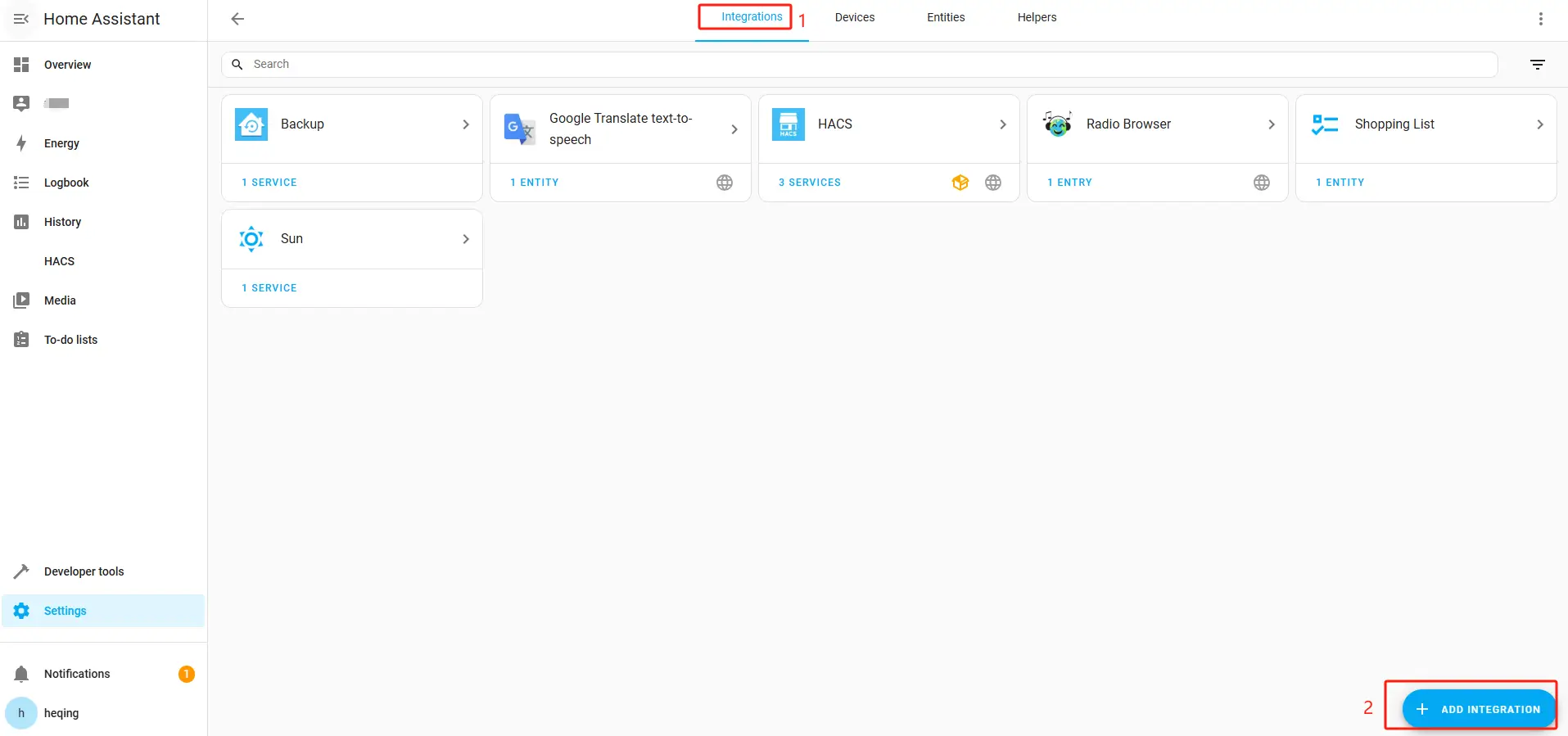
1. On the Home Assistant page, click "Settings" in the left sidebar, then click "Devices & services".
2. Select "Integrations" and click "Add INTEGRATION".
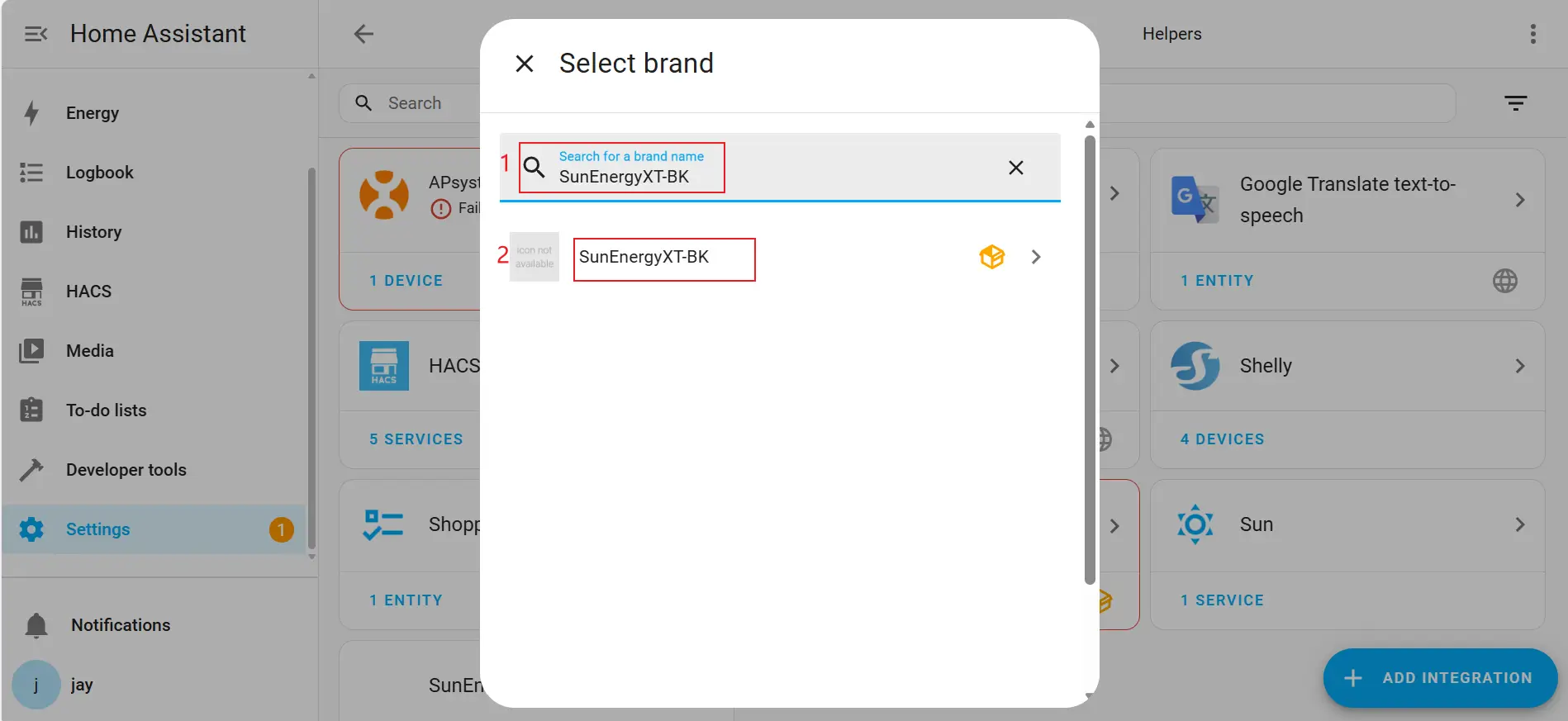
3. Search for "SunEnergyXT-BK" and select the SunEnergyXT-BK integration.
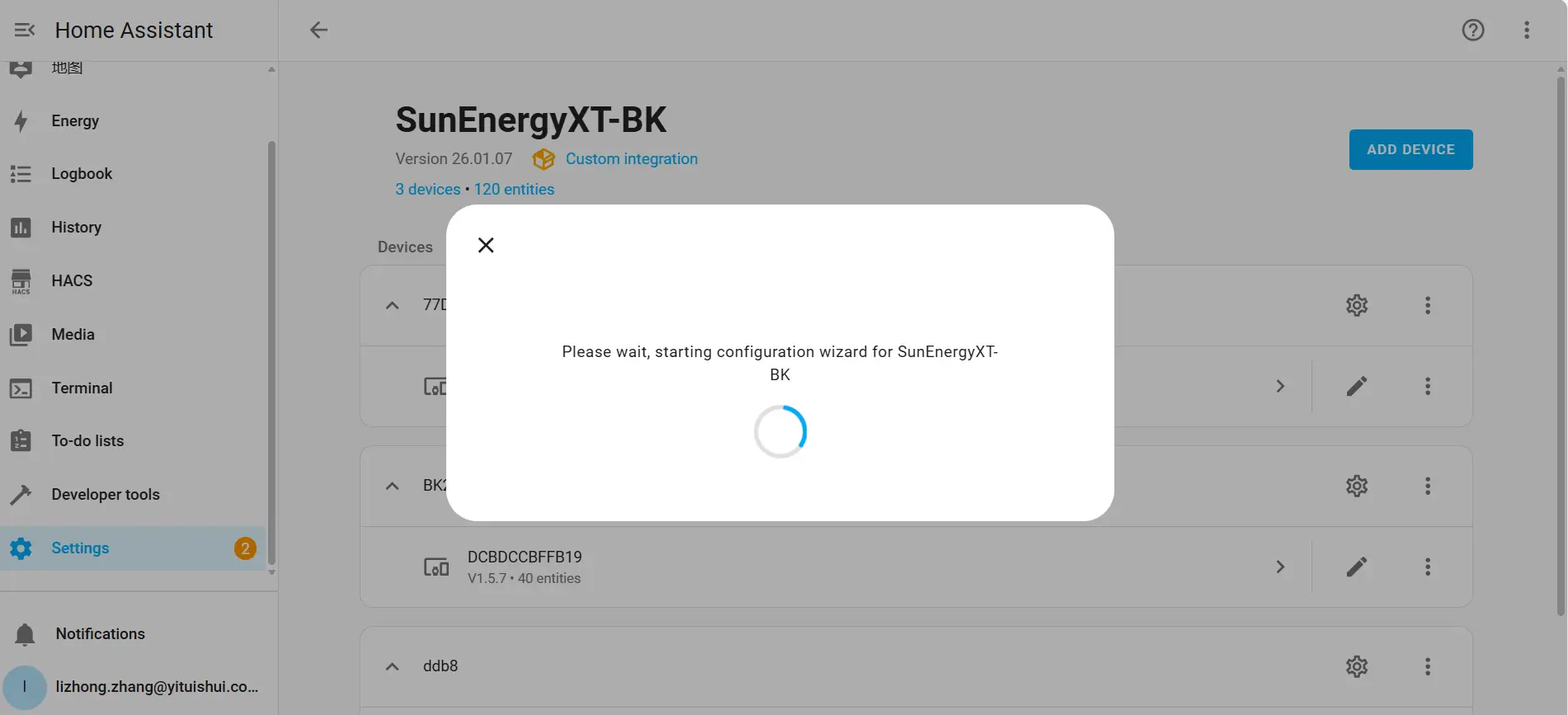
4. Waiting for system configuration.
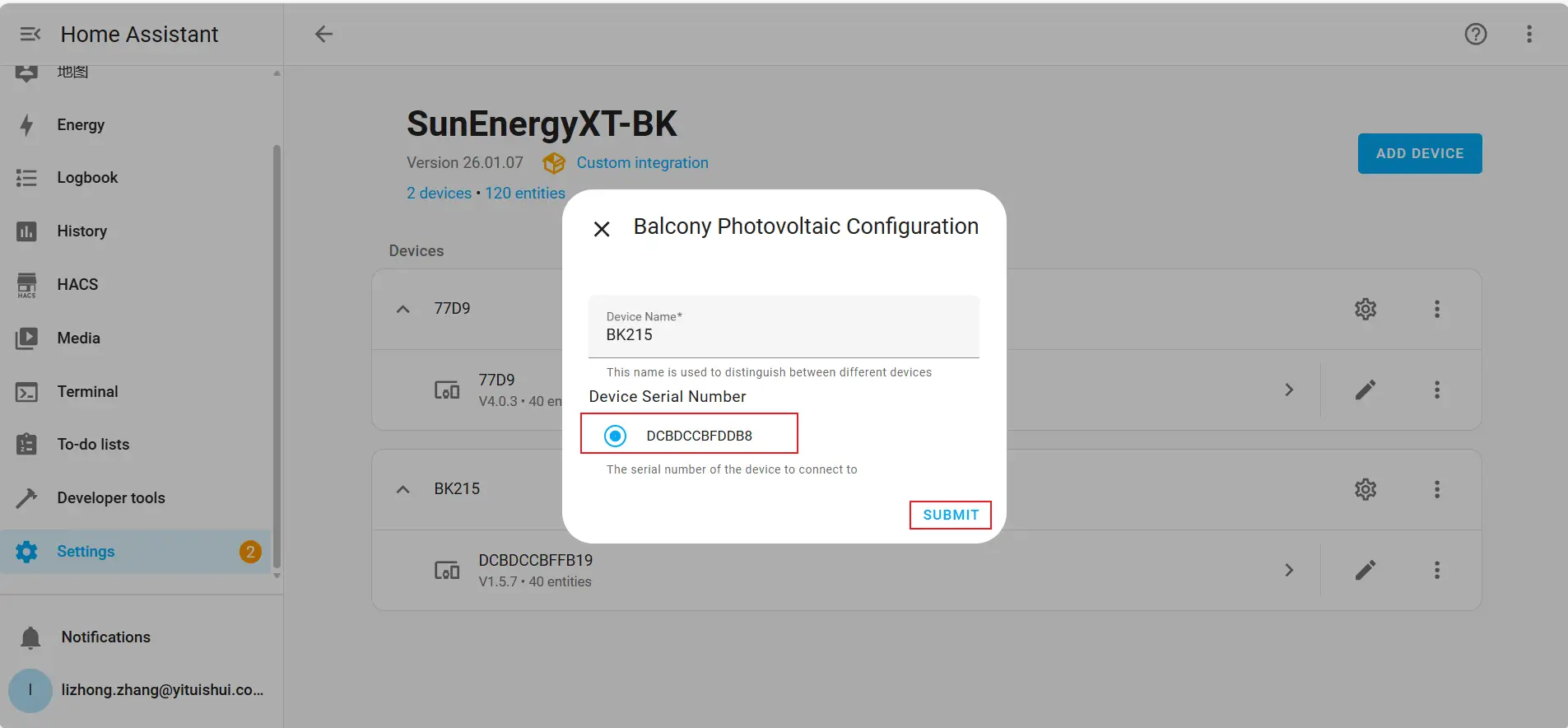
Step 4 | Configure the Device
1. If the device serial number is displayed, select the device and click "SUBMIT".
2. If “manual_config” is displayed, it indicates that the device was not automatically discovered. You will need to configure it manually.
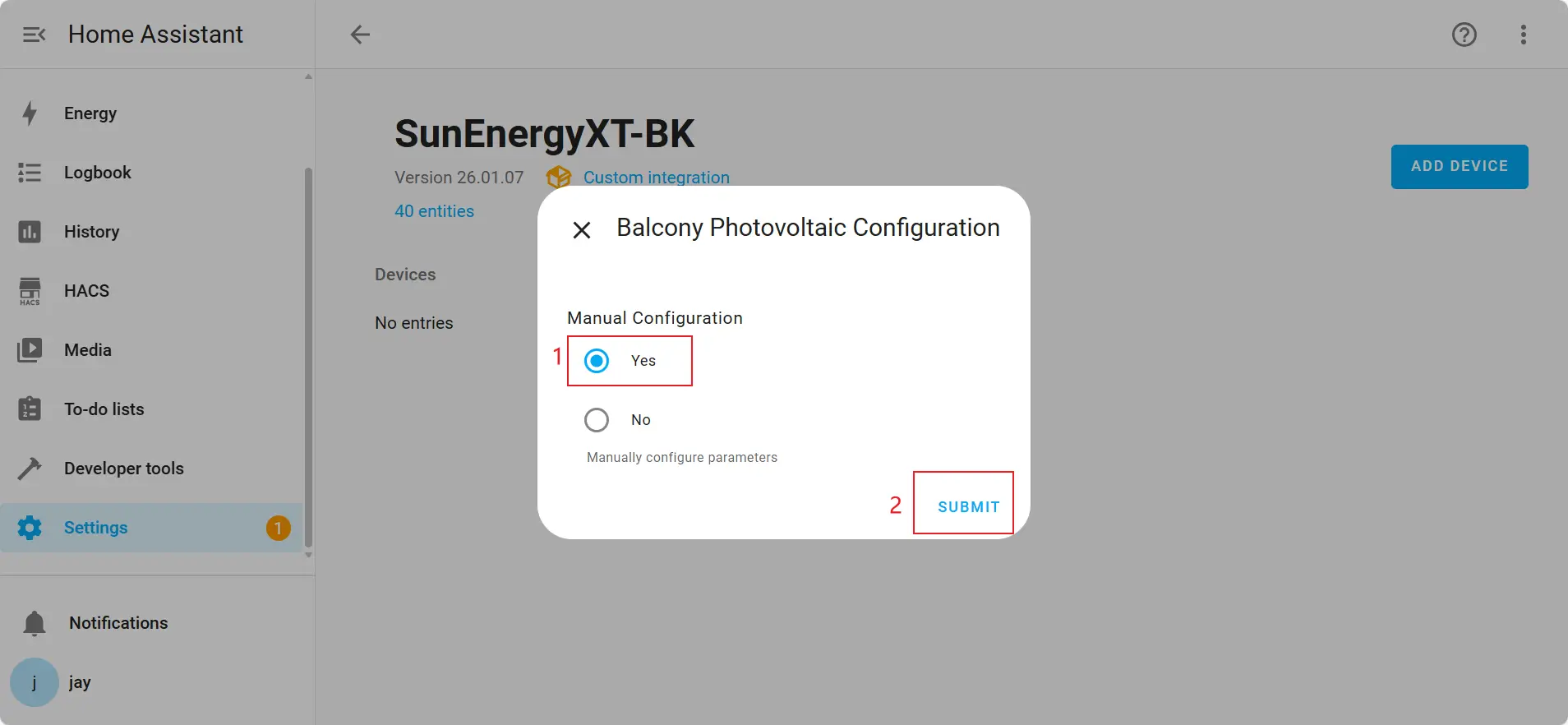
- The "manual configuration" process is as follows:
- Select "Yes" and click "SUBMIT".
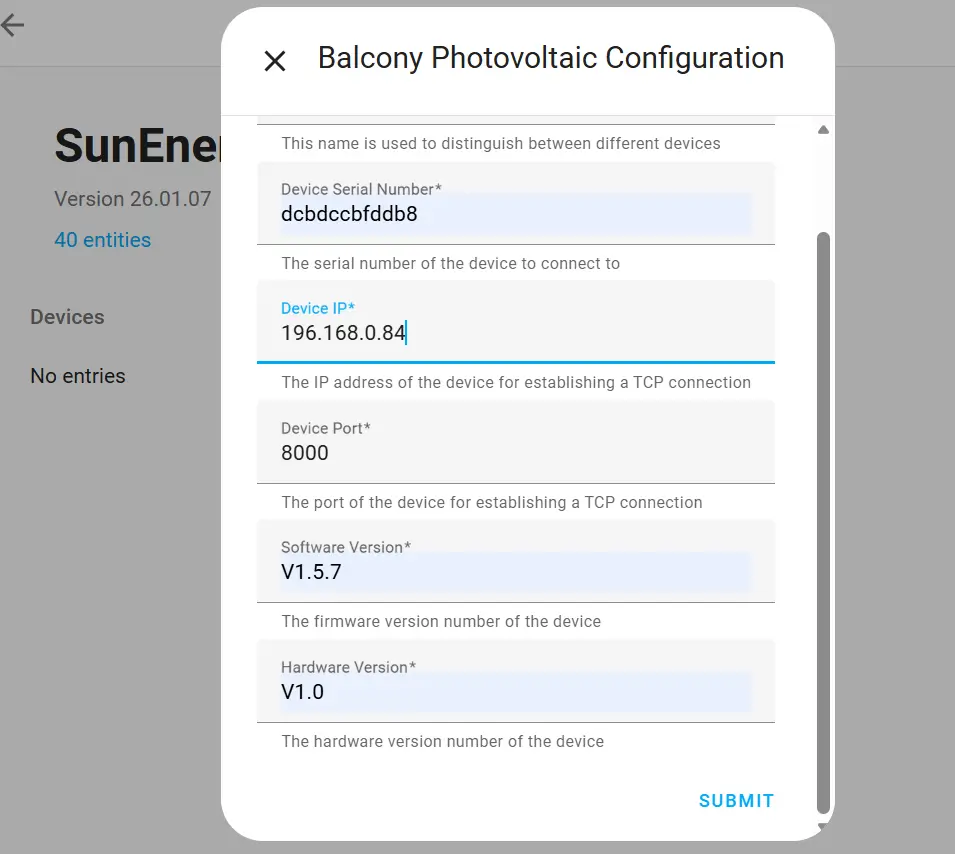
- Please fill in the following information:
- Device name: BK215 (You can also customize the device name.)
- Serial number: The device serial number.
- Host: The device IP address (How to obtain an IP address?)
- Port: 8000
- Software Version: Battery firmware version (How to obtain?)
- Hardware Version: Battery hardware version (How to obtain?)
- After completing the form, click "SUBMIT".

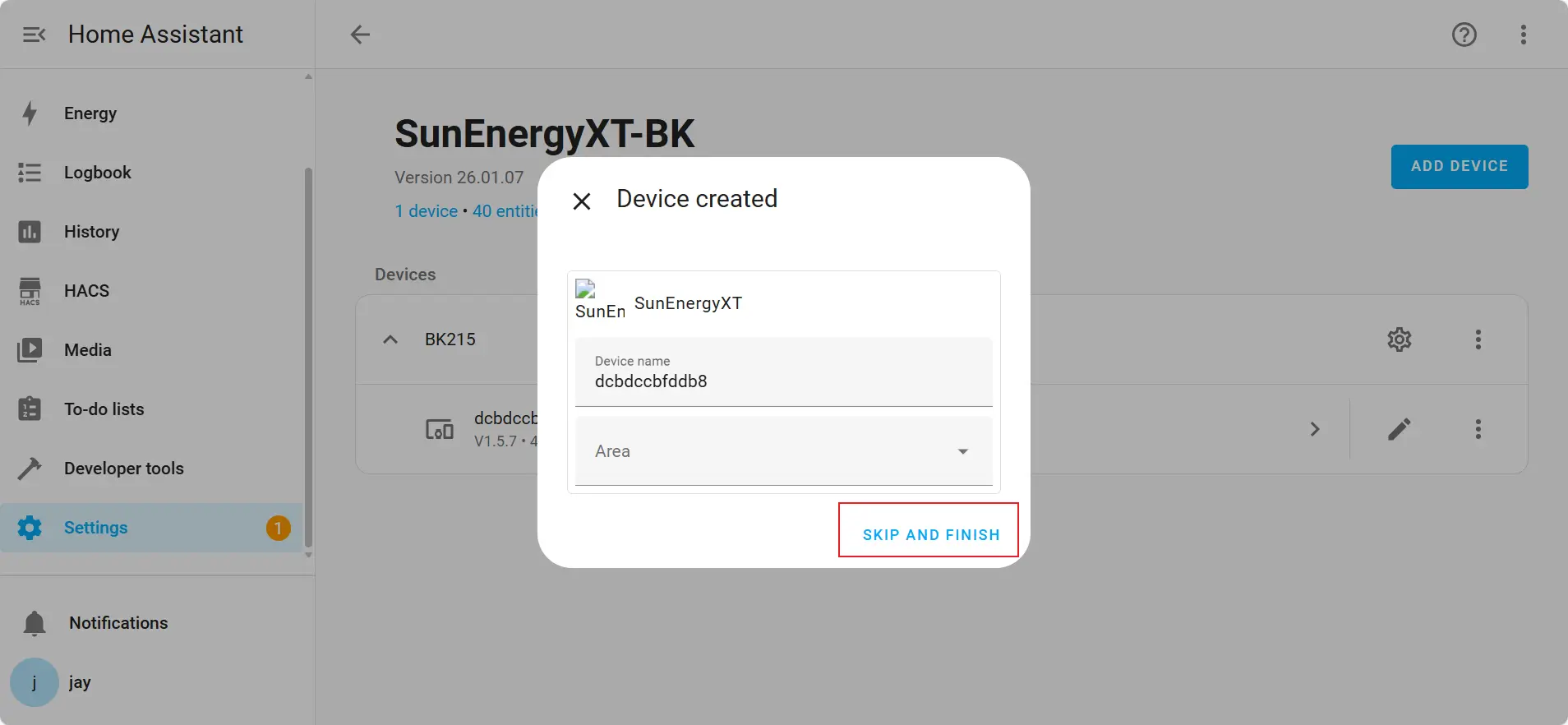
3. Click the "SKIP AND FINISH" in the pop-up window and complete the integration.
Step 5 | Verify Integration
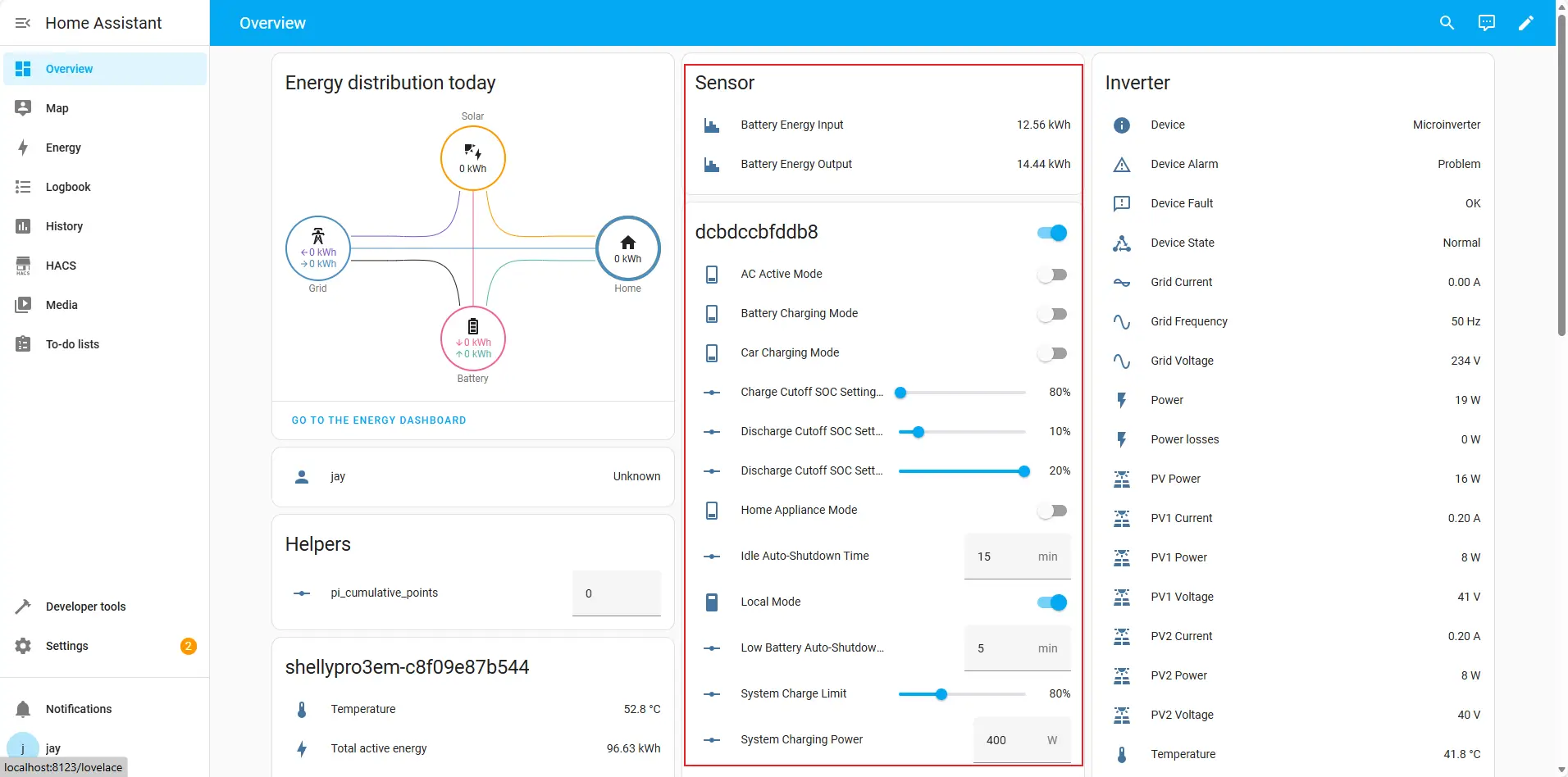
Once the integration is successful, you can view the device data and controls in Home Assistant, as highlighted in the interface.